
Project providers
The Providers section shows which providers one project can call and in what order Polyweb tries them. You need permission to read providers to open it.
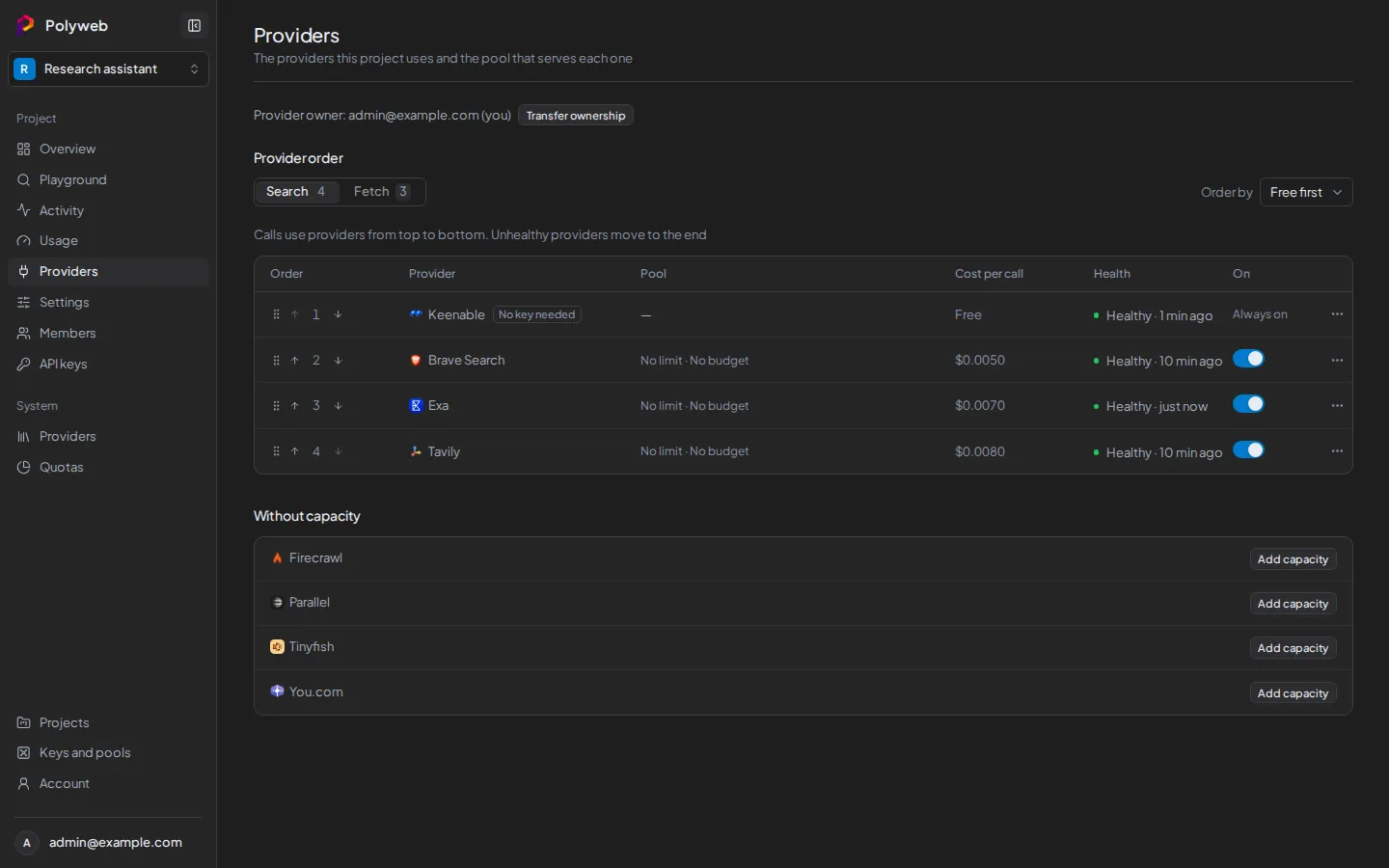
Read the provider order
Section titled “Read the provider order”The Provider order panel has a Search tab and a Fetch tab, each with the number of providers in it. Under each tab a table lists the providers in the order Polyweb tries them, from top to bottom. A provider that is unhealthy moves to the end.
| Column | Meaning |
|---|---|
| Order | The provider’s position. |
| Provider | The provider name. A “No key needed” tag marks providers that work without a key. |
| Pool | The pool serving this project, with its rate and budget use. “No pool” means nothing serves this provider yet. |
| Cost per call | The catalog price for one call of this operation. |
| Health | Whether the provider is currently responding. |
| On | Whether the project uses this provider for this operation. |
Providers that the project has no pool for appear under Without capacity. If a provider is switched off for the whole installation, its row says “Disabled by system”. A system admin can turn it back on under Providers in the System group of the sidebar.
If a pool exists but doesn’t allow the operation, the provider is missing from the tab, and a line below the table says “Not in this list” with its name. Edit the pool to allow that operation.
Change the provider order
Section titled “Change the provider order”You need the permission to configure providers.
- Open the Search or Fetch tab.
- Pick an option from Order by: Free first, Lowest cost, or Custom.
- For a custom order, drag a row, or use the “Move priority up” and “Move priority down” buttons on its handle.
A custom order must list every provider in the tab. If the list is out of date, for example because someone else changed it, the API returns ORDER_STALE; reload the page and try again.
Changes save at once. Moving a row switches the order to Custom. If you change your mind, press Undo to go back to the previous order. Custom stays disabled until you have saved a custom order at least once.
Search and fetch have separate orders, so change both if you want them to match.
Turn an operation on or off for a provider
Section titled “Turn an operation on or off for a provider”The switch in the On column controls whether this project uses a provider for that operation. Only the project’s provider owner can change it. For everyone else the switch is read-only. If you turn off the last operation a pool allows, Polyweb asks you to confirm first.
Add and manage capacity
Section titled “Add and manage capacity”Capacity means a pool for this project. The project’s provider owner can:
- Press Add capacity, either in the banner or beside a provider under Without capacity. Choose the provider and one of your keys, press Continue, then set the pool as described in Provider keys and pools. If you have no key for that provider yet, the dialog asks you to add one first.
- Open the row menu and press Edit pool to change a pool’s operations, rate, or budget.
- Press Unassign and confirm to stop the project from using a pool. The pool stays in your vault.
- Press Add a key for higher limits on a keyless provider such as Keenable.
If you are not the provider owner, you see “The provider owner must add capacity”. The owner’s email is shown on the page.
The provider owner
Section titled “The provider owner”Each project has one provider owner. Only that person can add or remove capacity, because the keys come from their vault.
A project admin can press Claim provider ownership when the project has none, and can use Transfer ownership to hand it over from the Members page. Claiming makes you the owner. Add capacity afterwards, since calls fail until a pool exists.
Troubleshooting
Section titled “Troubleshooting”| Symptom | Fix |
|---|---|
| “No providers yet” | No pool serves this project. Ask the provider owner to add capacity. |
| “No provider serves Search” (or Fetch) | No pool of this project allows that operation. Edit a pool to allow it. |
| A provider shows “Off for Search” | Its pool doesn’t allow search, or the system switch is off. |
| You can’t reorder providers | You need permission to configure providers. Ask a project admin. |
| The Providers link is missing | You lack permission to read providers. Ask a project admin. |
| “Provider capacity is not available yet” | The capacity API isn’t served by this installation. Use Retry or check the API server. |
Next steps
Section titled “Next steps”- Create a project API key for your agent.
- Routing explains how Polyweb picks a provider for each call.