
Quick start
Docker starts the dashboard, the API server, and the MCP server with one command. You need Docker with Docker Compose and git. Prefer to run it without Docker? See Manual setup.
Start Polyweb
Section titled “Start Polyweb”There is no prebuilt image, so you clone the repository and build it. The first build takes a few minutes.
-
Clone the repository.
Terminal window git clone https://github.com/polyweb-dev/polyweb-mcp.gitcd polyweb-mcp -
Create your
.envfile.Terminal window cp .env.example .env -
Set the secrets and the dashboard origin.
POLYWEB_AUTH_JWT_SECRETsigns sign-in tokens and must hold at least 32 random bytes.POLYWEB_AUTH_BROWSER_ORIGINStells the API which browser address may sign in. It must match the address you open the dashboard at. If you changeUI_PORTlater, change the origin to match.Terminal window sed -i "s|^POLYWEB_AUTH_JWT_SECRET=.*|POLYWEB_AUTH_JWT_SECRET=$(openssl rand -hex 32)|" .envsed -i 's|^# POLYWEB_AUTH_BROWSER_ORIGINS=.*|POLYWEB_AUTH_BROWSER_ORIGINS=["http://localhost:3000"]|' .envThe origin is a JSON list and must match the dashboard address exactly, including the port. Without it, sign-in fails with “The server returned a refresh credential to the browser.”
On macOS, use
sed -i ''instead ofsed -i. -
Build and start the stack.
Terminal window docker compose up --build -ddocker compose ps
Wait until api shows healthy in docker compose ps. The dashboard starts after the API is healthy. Docker checks GET /health, which returns only {"status":"ok"} and requires no credentials.
| Service | Address | Host port setting |
|---|---|---|
| Dashboard | http://localhost:3000 |
UI_PORT |
| API server and Swagger docs | http://localhost:8001/docs |
API_PORT |
| MCP server | http://localhost:8000/mcp |
MCP_PORT |
To change a host port, add the variable to .env, for example printf '\nUI_PORT=3100\n' >> .env, and update POLYWEB_AUTH_BROWSER_ORIGINS to the new dashboard address. If you run Polyweb on another machine, replace localhost with that machine’s address. Sign-in outside localhost needs HTTPS, so see Configuration.
Compose uses the project name polyweb, even when the checkout folder has another name. The default containers are polyweb-api-1, polyweb-mcp-1, and polyweb-ui-1. Use COMPOSE_PROJECT_NAME or docker compose -p NAME for a separate stack.
The database and encryption key share the polyweb_polyweb-data Docker volume. The volume name starts with your project name if you set a custom name.
Create an account
Section titled “Create an account”Registration on the dashboard sign-in page creates ordinary accounts only. A system admin, who can create projects, comes from the command line. For the first account, create an admin. The command asks for a password once at a masked prompt, so run it in an interactive terminal. Piping a password in does not work. The first run can take a few seconds while uv syncs inside the container.
docker compose exec api uv run polyweb-users create-admin --email admin@example.comReplace admin@example.com with your email address. More commands are in Admin accounts.
Sign in
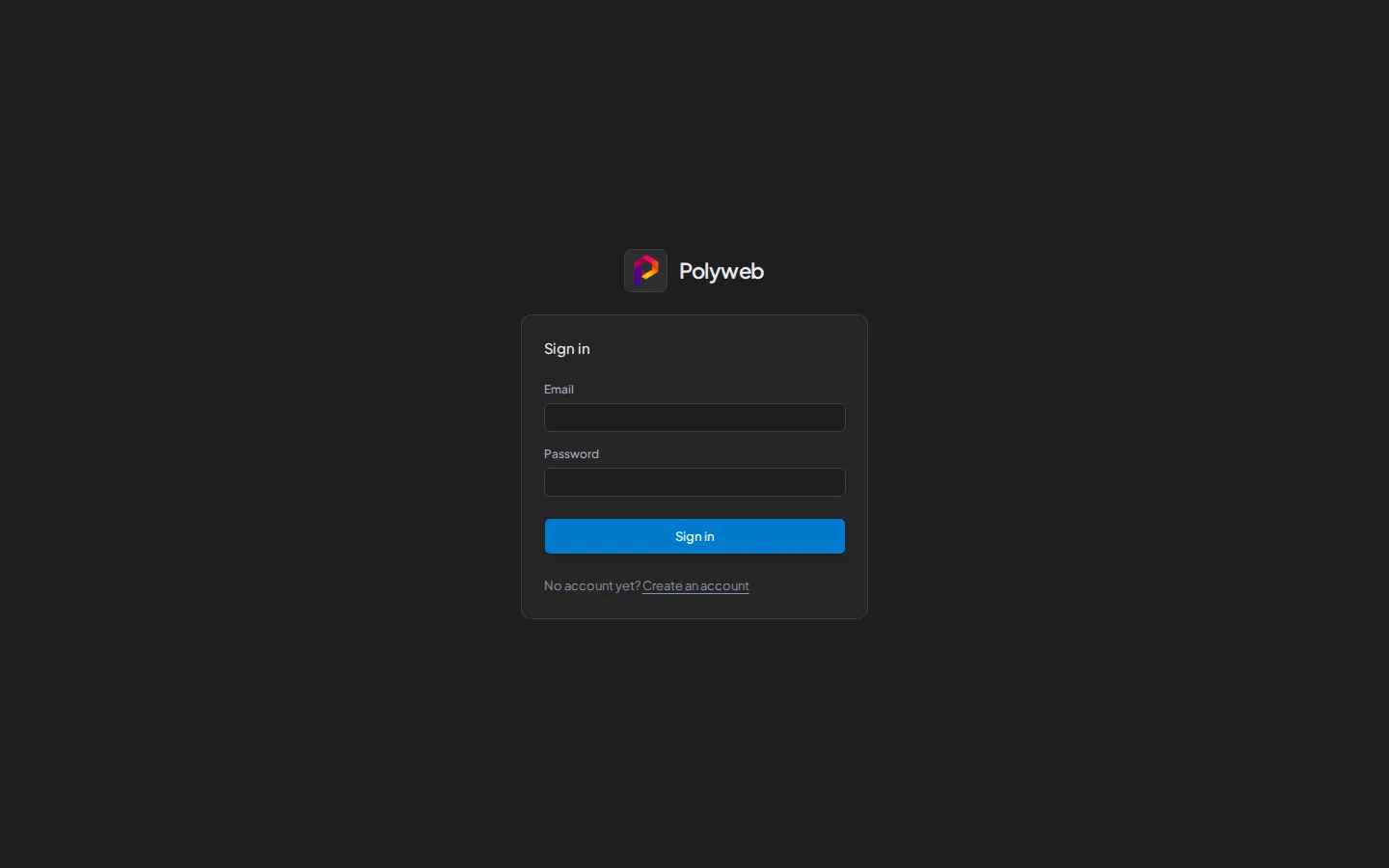
Section titled “Sign in”Open http://localhost:3000 and sign in with that email and password.
Create a project and an API key
Section titled “Create a project and an API key”- Open Projects and create a project, then open it.
- Open API keys in the project sidebar.
- Enter a Label, tick Search and Fetch, and press Issue key.
- Press Copy key. Polyweb shows the key only once.
More options are in Project API keys. To make search work, bind a provider to the project with Your first search.
Connect an agent
Section titled “Connect an agent”1. Save your API key. The key needs the search.execute and fetch.execute scopes. These commands save it for future terminal sessions and load it into the current session. Replace fs_live_REPLACE_ME with your key.
Save the variable for your Windows user, then load it into this terminal:
[Environment]::SetEnvironmentVariable("POLYWEB_API_KEY", "fs_live_REPLACE_ME", "User")$env:POLYWEB_API_KEY = [Environment]::GetEnvironmentVariable("POLYWEB_API_KEY", "User")Restart terminal and agent apps that were open before this change. See PowerShell environment variables.
Run once to add the key to your zsh startup file and load it now:
printf '\nexport POLYWEB_API_KEY="fs_live_REPLACE_ME"\n' >> "${ZDOTDIR:-$HOME}/.zshrc"source "${ZDOTDIR:-$HOME}/.zshrc"New interactive zsh terminals load this file. See zsh startup files.
Run once to add the key to your Bash startup file and load it now:
printf '\nexport POLYWEB_API_KEY="fs_live_REPLACE_ME"\n' >> ~/.bashrcsource ~/.bashrcNew interactive non-login Bash terminals load this file. For login shells, make sure your ~/.bash_profile or ~/.profile loads ~/.bashrc. See Bash startup files.
On macOS and Linux, start your agent from the terminal. Desktop launchers do not load these shell profiles. To change the saved key later, edit the key line in the startup file.
2. Add the MCP server. Pick your agent. The server address is http://localhost:8000/mcp.
The command reads the variable by name, so it is the same on every system.
codex mcp add polyweb --url http://localhost:8000/mcp --bearer-token-env-var POLYWEB_API_KEYcodex mcp listSee the Codex CLI reference.
Your shell expands the variable inside double quotes. Claude Code saves the expanded key in its user configuration.
In PowerShell:
claude mcp add --transport http --scope user polyweb http://localhost:8000/mcp --header "Authorization: Bearer $env:POLYWEB_API_KEY"In zsh or bash:
claude mcp add --transport http --scope user polyweb http://localhost:8000/mcp --header "Authorization: Bearer $POLYWEB_API_KEY"Run claude mcp list, or type /mcp in Claude Code, to check the connection. See the Claude Code MCP guide.
Add this to opencode.json in your project directory. OpenCode reads {env:POLYWEB_API_KEY} from your environment. The file is the same on every system and contains no API key. This format is for OpenCode v2, which uses mcp.servers.
{ "mcp": { "servers": { "polyweb": { "type": "remote", "url": "http://localhost:8000/mcp", "oauth": false, "headers": { "Authorization": "Bearer {env:POLYWEB_API_KEY}" } } } }}Run opencode mcp list to check the connection. See the OpenCode MCP servers docs.
For other clients, stdio, and error messages, see Connect an agent.
Troubleshooting
Section titled “Troubleshooting”| Symptom | Fix |
|---|---|
| Sign-in fails with an error | POLYWEB_AUTH_BROWSER_ORIGINS is empty or does not match the address in your browser. Set it to the exact origin, then run docker compose up -d. |
POLYWEB_AUTH_JWT_SECRET is required for account authentication in docker compose logs api |
The secret is empty. Set it in .env, then run docker compose up -d. |
| A port is already in use | Set UI_PORT, API_PORT, or MCP_PORT to a free port in .env, update POLYWEB_AUTH_BROWSER_ORIGINS if you changed UI_PORT, then run docker compose up -d. |
The dashboard returns 502 after you recreate the api container |
Run docker compose restart ui. |
create-admin reports a missing database file |
Wait for api to be healthy and run the command again. |