
Your first search
You will go from a fresh install to a working search in the dashboard, then make the same call with a project API key. You need a running Polyweb (see Quick start) and a system admin account.
Create a project
Section titled “Create a project”A project holds its own providers, members, and API keys. Only a system admin can create projects.
- Sign in at
http://localhost:3000. - Open Projects and create a project.
- Open the project. Its pages are Overview, Playground, Activity, Usage, Providers, Settings, Members, and API keys.
Add a provider key
Section titled “Add a provider key”Provider keys live in an encrypted vault, never in .env. Keenable works without a key. For every other provider, you need an account and a key from that provider. Provider overview shows what each one supports.
- Open Keys and pools from the account menu and select Add key.
- Create a pool that offers
searchandfetch, and add your key to it. - Bind the pool to your project.
- Open the project’s Providers page and check that the operations you need appear as available.
Brave supports search only, so pick a provider with fetch support if you want to try fetch too.
Run a search in the Playground
Section titled “Run a search in the Playground”- Open your project, then Playground.
- Stay on the Search tab, type
solar panel prices, and run the search.
The results show the provider that answered, the latency, and the cost.
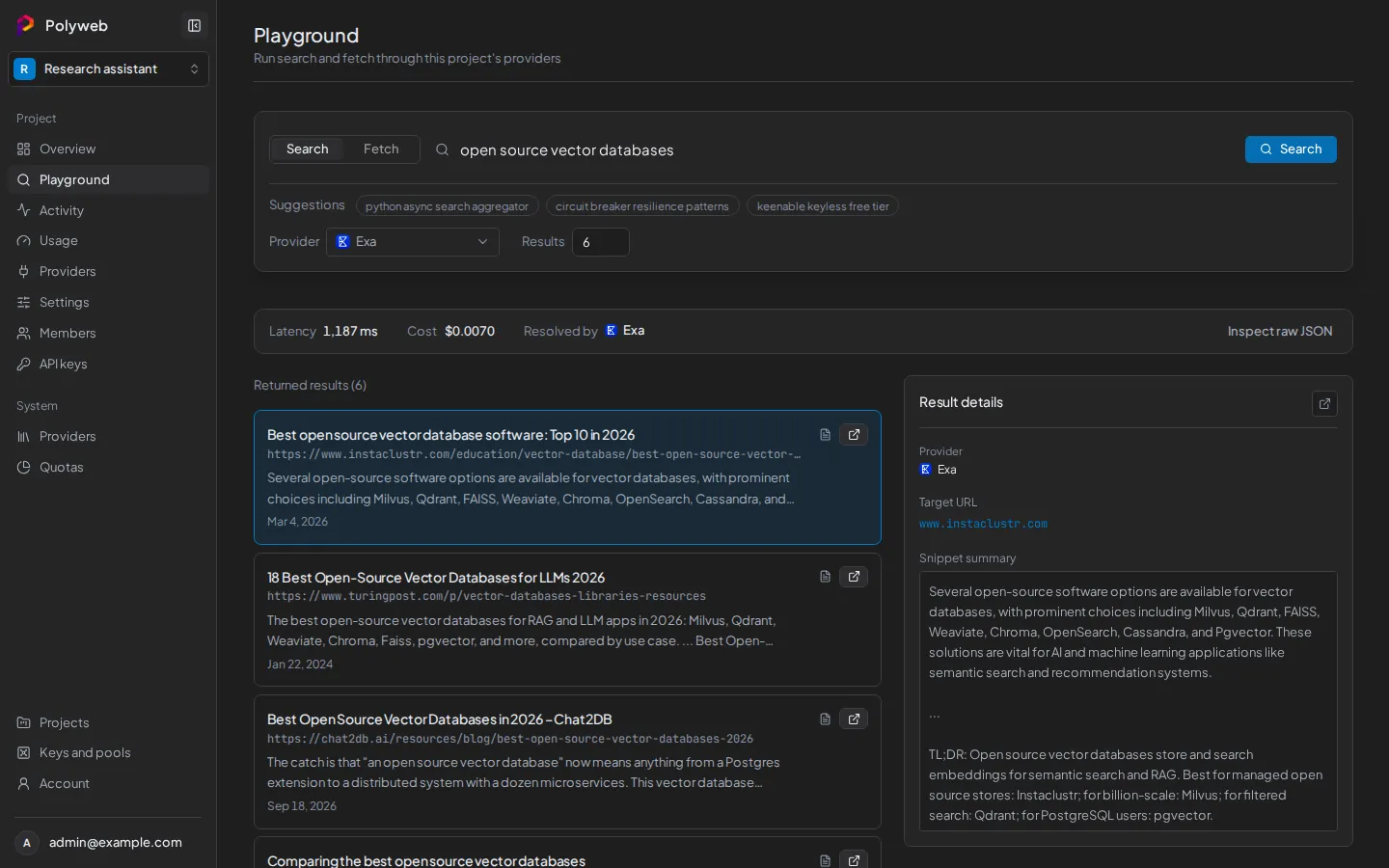
If the Search tab is disabled, your account lacks the search.execute scope. A project admin can grant it.
Fetch a page
Section titled “Fetch a page”- Select the Fetch tab.
- Paste one full URL, such as
https://example.com. - Optionally pick a provider. Auto chooses one for you.
- Run the fetch and read the page text.
The Fetch tab needs the fetch.execute scope. A fetch accepts one URL per call.
Make the same call with an API key
Section titled “Make the same call with an API key”The Playground uses your sign-in. Agents and code use a project API key instead.
- Open the project’s API keys page and create a key with
search.executeandfetch.execute. - Copy the key when it is shown. You cannot read it again later.
- Call the REST API. Replace
fs_live_REPLACE_MEwith your key.
curl -X POST http://localhost:8001/search \ -H "Authorization: Bearer fs_live_REPLACE_ME" \ -H "Content-Type: application/json" \ -d '{"query": "solar panel prices", "limit": 5}'Open Activity in the dashboard to see the call you just made as a trace.
Troubleshooting
Section titled “Troubleshooting”| Symptom | Fix |
|---|---|
| An error right after you run a search | The project has no usable provider. Check the Providers page and your pool binding. |
402 or 429 |
A budget or rate limit is used up. Wait, or ask an admin to raise it. |
422 on fetch |
The URL is empty or malformed. Paste one full http:// or https:// URL. |
| You are sent back to sign in | Your session expired. Sign in again. |
Next steps
Section titled “Next steps”- Connect an agent (Codex, Claude Code, or OpenCode) to use
searchandfetchas tools. - Call the REST API from your own code.
- Provider keys and pools explains how a call picks a key.