
Provider keys and pools
Polyweb stores your provider keys in an encrypted vault, never in .env. A project can only use a key after you give it a pool. You do all of this on Keys and pools in the sidebar, which system admins and project admins can open.
How keys, pools, and projects fit together
Section titled “How keys, pools, and projects fit together”A provider key is a secret you got from a provider such as Tavily or Exa. It belongs to your account.
A key pool (pool for short) grants one key to one project for the operations you choose (search, fetch, or both). A pool also carries a request rate limit and an optional budget. One key can have several pools, one per project.
When a search runs, Polyweb looks at the project’s pools to see which providers it may call. If a provider is missing from a project, the break is almost always a missing pool, or a pool that doesn’t allow that operation. The Project providers page shows the result.
Add a provider key
Section titled “Add a provider key”- Press Add key.
- Choose the Provider.
- Enter a Label to recognise the key later.
- Paste the secret into API key.
- Press Add key.
Parallel also offers an Authentication choice. Pick OAuth to connect without a pasted secret, then follow the Connect Parallel dialog: copy the code, open the verification page, and approve.
Under Advanced you can record what the provider allows for this key:
| Field | Meaning |
|---|---|
| Key limit | Requests the provider allows for this key. Leave it empty if you don’t know. |
| Rate unit | Per second, Per minute, or Per hour. |
| Overcommit | Lets the pool limits add up to more than the key limit, so a busy pool can use idle capacity from other pools. |
| When pools compete | Equal split or By pool size. |
Keenable works without a key, so it shows up as “No key needed” in provider lists. You only add a Keenable key for higher limits.
Create a pool for a project
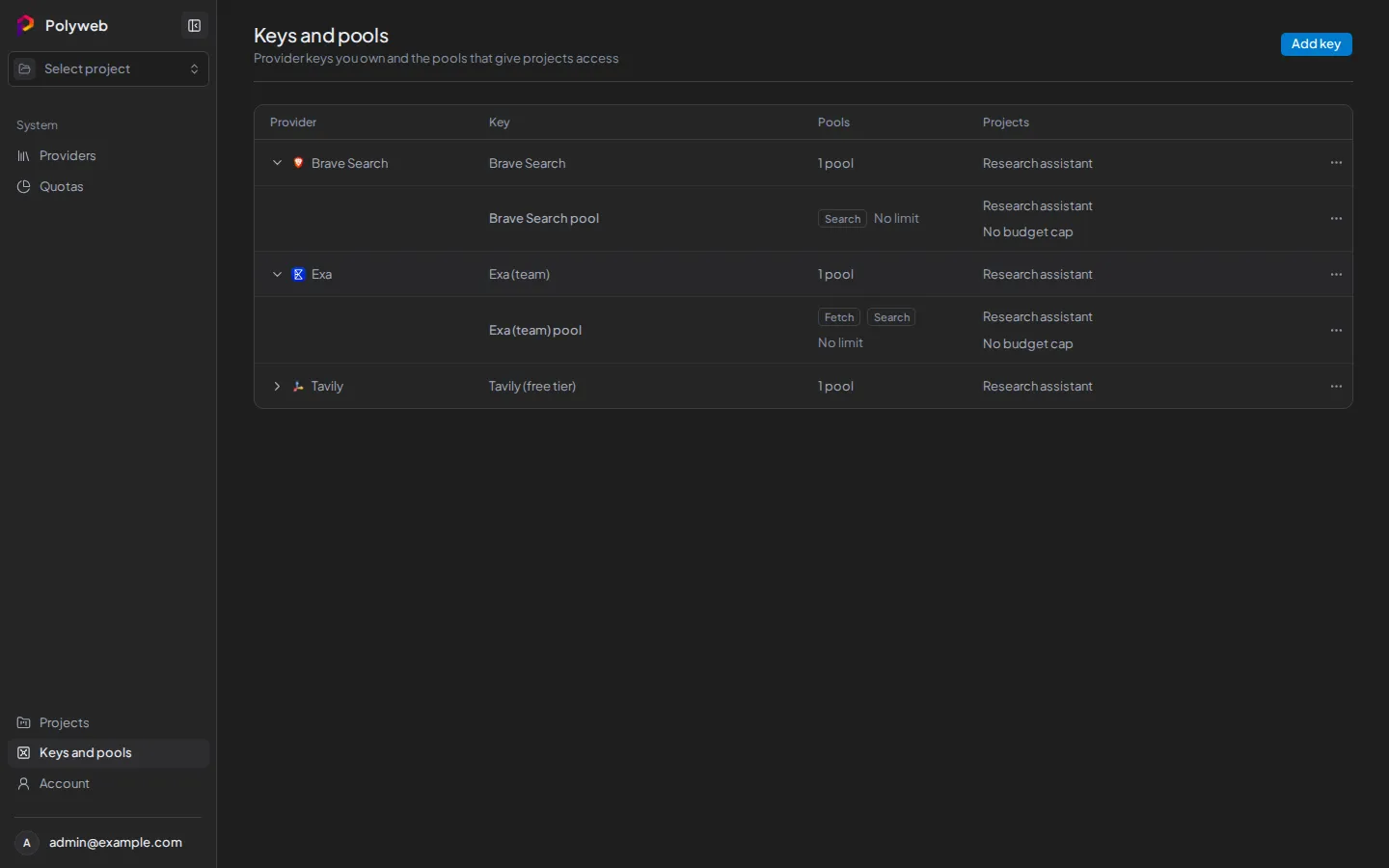
Section titled “Create a pool for a project”- Find the key in the table (columns Provider, Key, Pools, Projects).
- Open the row menu and press Create pool.
- Pick the Project. The list shows only projects where you are the provider owner and that don’t yet have this provider.
- Under Allowed operations, tick Search, Fetch, or both. Providers that don’t support an operation say so. Brave, for example, has no Fetch.
- Set Request rate and its Rate unit. The default is 60 per minute. To set different limits, turn on Limit Search and Fetch separately.
- To cap spend, turn on Budget, enter Budget (USD), and pick a period of day, week, or month. Calls with no known cost don’t count toward it.
- Press Create pool.
A project can have one pool per provider. If you try to add a second, you see “This project already has a pool for this provider”. If the pool’s limits add up to more than the key limit, the save fails unless Overcommit is on. See Rate limits and budgets for how limits and budgets behave.
Manage keys and pools
Section titled “Manage keys and pools”Expand a key row to see its pools. Each pool has a menu:
| Action | What it does |
|---|---|
| Edit pool | Change the pool name, operations, rate, or budget. |
| Copy to another project | Creates a second pool from the same key for another project. |
| Assign to project | Gives a pool that has no project to one. |
| Remove from project | Calls stop in that project. The pool stays in your vault. |
| Delete pool | Removes the pool for good. |
Each key has its own menu:
| Action | What it does |
|---|---|
| Create pool | See above. |
| Rotate key | Replaces the secret. Every pool that uses the key switches to the new one at once. Not available for OAuth keys. |
| Edit key | Changes the label and the Advanced settings. |
| Connect or Disconnect | For OAuth keys only. |
| Delete key | Deletes the key and all its pools. The confirmation names the projects that lose access. |
Secrets are write-only. Polyweb never shows a stored key again, so rotate it if you lose track of it.
Permissions
Section titled “Permissions”You need to be a system admin or a project admin to open Keys and pools. You can only add a pool to a project where you are the provider owner. Each project has one provider owner, shown on its Providers page.
Next steps
Section titled “Next steps”- Project providers shows which providers a project can use and in what order.
- Providers lists what each provider supports.